WiFi QR Code — Share Your Password Instantly (No Typing Required)
A WiFi QR code lets anyone connect to your network with one scan — no passwords, no typos, no frustration. Here's how to create one in seconds.
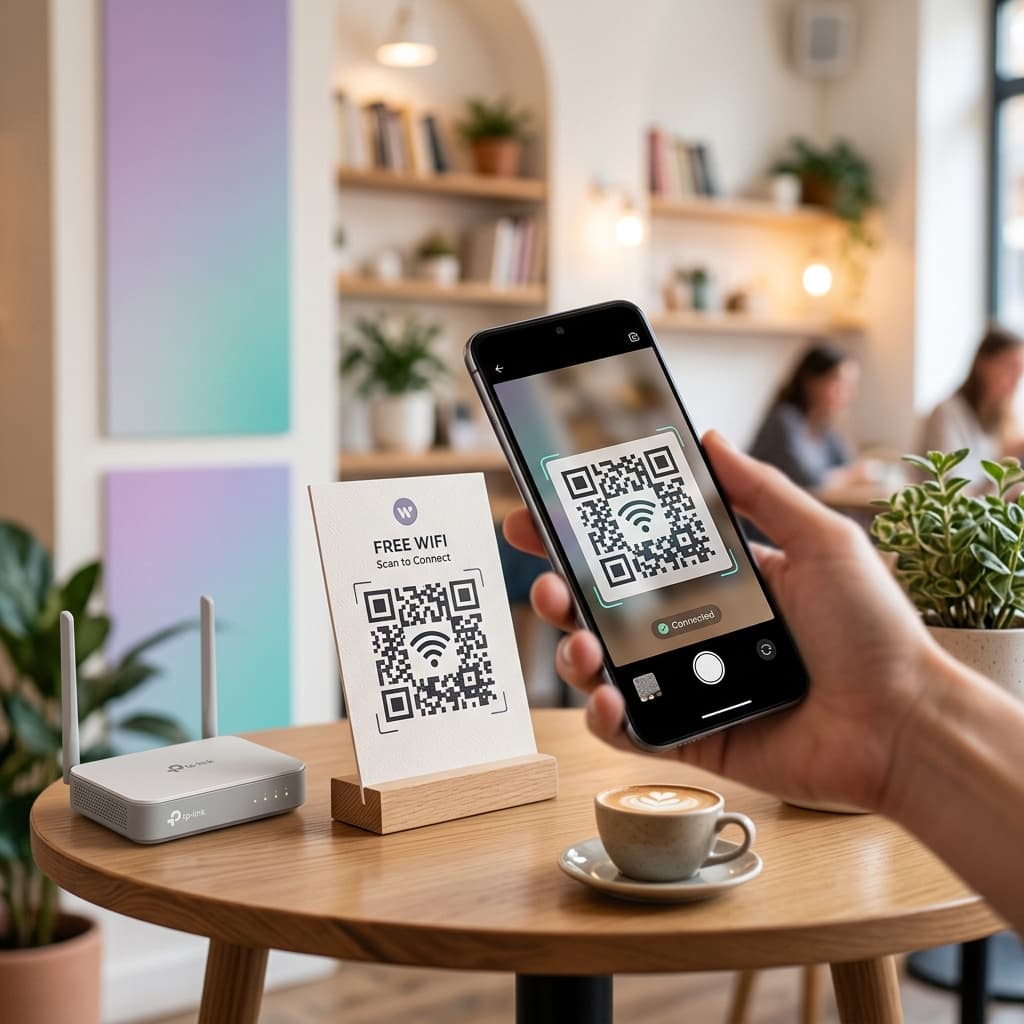
Sharing your WiFi password is one of those small moments that is more annoying than it should be. You either read out a 20-character string letter by letter, write it on a sticky note, or hand over your phone and hope for the best.
A WiFi QR code solves this completely. Scan it once and you're connected — no typing, no errors, no asking "was that a capital L or a one?"
What Is a WiFi QR Code?
A WiFi QR code is a scannable code that stores your network credentials — your SSID (network name), password, and security type — in a format any smartphone camera can read. When someone scans it, their device connects to the network automatically.
It works on iOS 11 and above and Android 9 and above with no app required. The built-in camera handles everything.
How to Create a WiFi QR Code
You can generate a wifi qr code in under a minute with QR Spark:
- Go to QR Spark and select the WiFi QR code type
- Enter your network name (SSID) exactly as it appears on your router
- Enter your WiFi password — it's encrypted in the code, not visible to anyone who scans it
- Select your security type — WPA/WPA2 for most modern routers, WEP for older ones, or None for open networks
- Customise the design with your colours or logo if needed
- Download as PNG (for screens and printing) or SVG (for large-format print that needs to scale)
That's it. No account required for a basic WiFi QR code.
How to Share Your WiFi Password Using a QR Code
Once you have your code, the way you share it depends on where people are connecting from.
At home: Print it and put it in a small frame near your router or on the fridge. Guests scan it when they arrive — you never have to find the router card again.
In a café or restaurant: Place the QR code on table cards, near the counter, or printed on your menu. This removes the single most common customer question your staff gets.
In an Airbnb or rental: Add it to your welcome booklet or stick it inside a cabinet door. It works even better than a printed password because guests can't misread it.
In an office: Put it in meeting rooms so visiting clients and contractors can connect without bothering anyone.
How to Make a QR Code for Your WiFi Router
Most home routers use WPA2 security. When you generate your wifi qr code, select WPA/WPA2 as the security type — this covers the vast majority of setups.
If you're unsure of your exact network name or password, check:
- The label on the bottom or back of your router
- Your router's admin panel (usually at 192.168.1.1 or 192.168.0.1)
- Your device's saved WiFi settings if you're already connected
One important note: if you ever change your WiFi password, you'll need to generate a new QR code. This is where a dynamic QR code from QR Spark becomes useful — you can update the destination without reprinting, though for WiFi specifically the credential change requires a new code regardless.
WiFi QR Code for a Sign or Display
The most common use case after home sharing is creating a printable WiFi sign — a framed or laminated card that sits on a counter, desk, or wall and invites people to scan and connect.
A good WiFi sign has four elements:
| Element | What to include |
|---|---|
| Headline | "Connect to our WiFi" or "Free WiFi — scan to connect" |
| QR code | Minimum 3cm × 3cm for reliable scanning |
| Network name | So people know which network they're joining |
| Fallback password | For older devices that can't scan QR codes |
QR Spark lets you download your code as a high-resolution SVG so it scales cleanly to any print size — from a business card to an A4 sign — without losing quality.
Is a WiFi QR Code Secure?
A common question: can someone extract your password from the QR code?
Technically, yes — the credentials are encoded in the QR pattern and can be decoded with the right app. This means you should treat your WiFi QR code the same way you treat a written-down password. Don't post it publicly online.
For businesses, the better solution is to create a guest network with limited access and a separate password, then share that via QR code. That way visitors connect to an isolated network and your main network stays private.
How to Make a WiFi QR Code That Lasts
A few things that affect how long your QR code stays useful:
- Don't change your WiFi password often — every change means reprinting. If you're security-conscious, set up a separate guest network with a stable password instead.
- Use SVG format for print — it scales without pixelating, so the code scans cleanly even at large sizes.
- Test before printing — scan it with two different phones (iOS and Android) before you commit to a large print run.
- Keep the contrast high — dark code on a light background. Avoid low-contrast colour combinations that reduce scannability.
Create Your WiFi QR Code
QR Spark generates WiFi QR codes for free — no account needed for a static code. If you want to add your logo, customise the colours, or track how many times it's been scanned (useful for businesses), create a free account and upgrade when you need it.
Related Articles

Dynamic vs Static QR Codes — Which One Does Your Business Need?
Not all QR codes are equal. Learn the key differences between dynamic and static QR codes and which type fits your use case.